Relevant Links
Using FileZilla (FTP) with Garry’s Mod
Using WinSCP (FTP) with Garry’s Mod
What does this change impact?
This makes your gamemode appear as “StarwarsRP” in the server browser.
Prerequisites
This article only covers the method to create a StarwarsRP gamemode using an FTP client as that makes the process much easier. Please see the Relevant Links section and refer to one of the videos linked there depending on which is your preferred FTP client.
Preparing the gamemode
-
Navigate to the DerivedRP Release Page and proceed to click on and download
derivedrp.zip. -
Using any extraction software of your choice (WinRAR is recommended), open the
derivedrp.zipfile and proceed to drag thederivedrpfolder to your Desktop. -
Rename the
derivedrpfolder tostarwarsrpand proceed to open it. -
Rename the
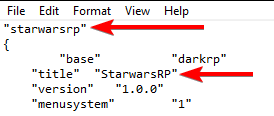
derivedrp.txttostarwarsrp.txtand proceed to edit the file. -
Replace the title field with
"StarwarsRP".
-
Navigate back into the
derivedrpfolder and proceed to open thegamemodefolder. -
Edit both the
cl_init.luaand theinit.luaand proceed to change theGM.NametoStarwarsRP.

Installing the gamemode
-
Navigate to the Game Panel and proceed to login.
-
Click on the Game Services button and if prompted select the server you would like to install StarwarsRP to.
-
Navigate to the Mod Manager and proceed to install the latest version of DarkRP.
-
Open up your preferred FTP client and proceed to login, if you’re having trouble with this step refer to the videos in the Relevant Links section.
-
Navigate to the
garrysmod/gamemodesdirectory and proceed to drag in the StarwarsRP derived gamemode we prepared earlier. -
Proceed to follow the Changing The Gamemode article set the gamemode to
starwarsrp. -
Restart your server.